

Most Xiaomi, Redmi, and Poco devices run Global or Stock ROMs, which do not officially support installing third-party MTZ theme files. As a result, many users are unable to use premium Chinese MTZ themes and miss out on some of the best theme designs, including custom lock screens, icons, status bars, and system UI customisation.
While rooting your device or installing a custom ROM can unlock additional theme options, most users prefer to avoid these methods. They carry certain risks, such as boot loops, software instability, failed updates, or warranty-related concerns. Fortunately, there are alternative ways to install MTZ themes without modifying your device.
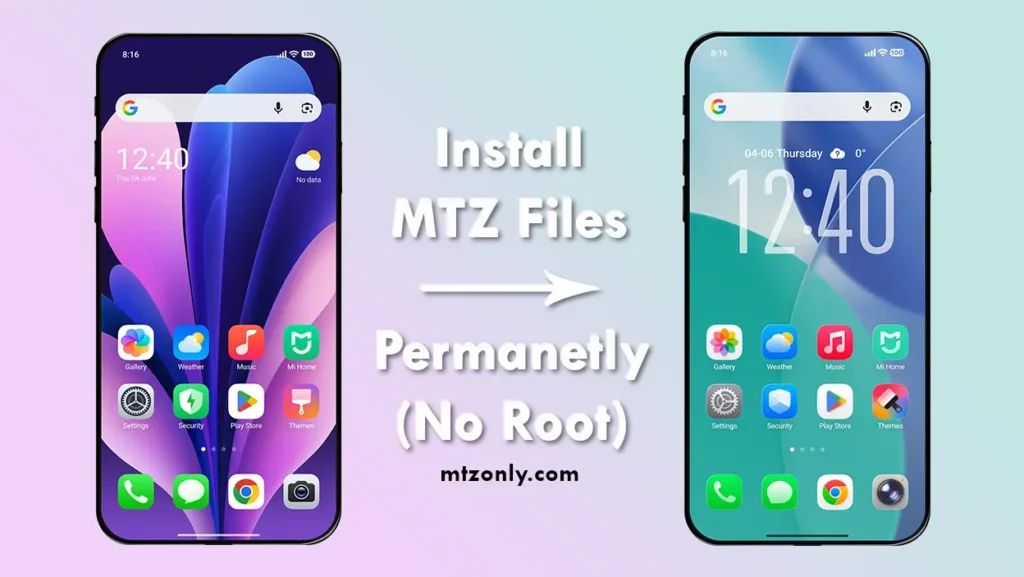
In this guide, we’ll show you how to permanently install MTZ themes on Xiaomi, Redmi, and Poco devices using MTZ Installer Pro. This method does not require root access and works on most devices running HyperOS and MIUI.
What is MTZ Installer Pro?
It is a third-party application designed to apply MTZ themes that are not available in the official Themes Store. If you’re someone who has no experience in installing custom ROMs or don’t want to take the risk of rooting your device, then this is one of the easiest ways to install custom HyperOS themes without root access.
Why Xiaomi Blocks Third-Party MTZ Theme Installation
Back when MIUI 10 and MIUI 11 were the latest versions, the Themes app included an Import option that allowed users to install third-party Xiaomi themes directly. Over time, the Themes app received several updates focused on performance improvements and security. During this process, the Xiaomi team removed the Import option to reduce theme piracy and unauthorized copying of theme elements. Rooting your device can also allow you to install external themes permanently. However, it may affect the functionality of certain security-sensitive apps, including banking and payment applications. Since the Global Themes Store offers fewer high-quality themes compared to the China region, many users feel disappointed and lose interest in downloading new themes.
Benefits of Installing MTZ Themes Permanently
- Themes remain applied after reboot – Unlike temporary theme methods, the installed theme remains active even after restarting your device.
- No root access required – You can install MTZ themes without unlocking the bootloader, rooting your device, or modifying system files.
- Access to premium Chinese themes – Try the premium designed themes that are not available in Global Themes store.
- Method Compatibility – This method works in almost all Xiaomi, Redmi and Poco devices running HyperOS [Tested] and MIUI.
Requirements Before Installing MTZ File
- Backup your data (recommended)
- Required App Permissions (Depending upon the app)
- MTZ Theme Files (Download MTZ theme files directly from mtzonly.com)
- MTZ Installer Pro APK [DOWNLOAD HERE]
Warning: MTZ Installer Pro is a third-party application and is not available on the Google Play Store and installing it requires disabling Google Play Protect. MTZOnly.com is not affiliated with the developer of this application and cannot verify or guarantee its privacy, security, or reliability. Proceed at your own risk.
How to Install MTZ Files Permanently on HyperOS and MIUI
We have divided this method into multiple steps, making it easier to follow.
Step 1: Disabling Google Play Protect
In some devices, this app might get blocked by Google Play Protect. If you are able to install the apk file on your device, then skip this step and move to step 2 but if not, follow this –
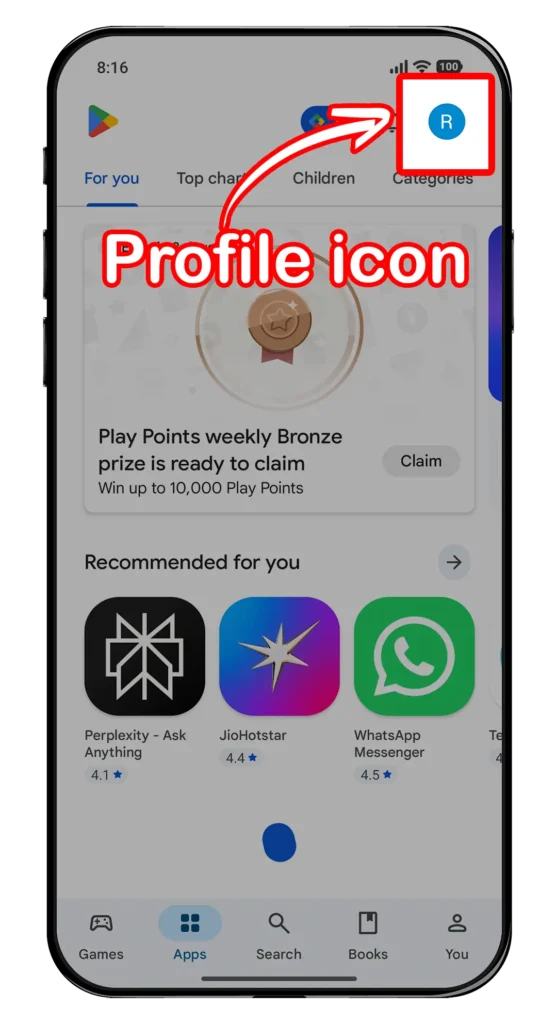
- Open Play store app
- Tap on Profile icon (top-right corner)
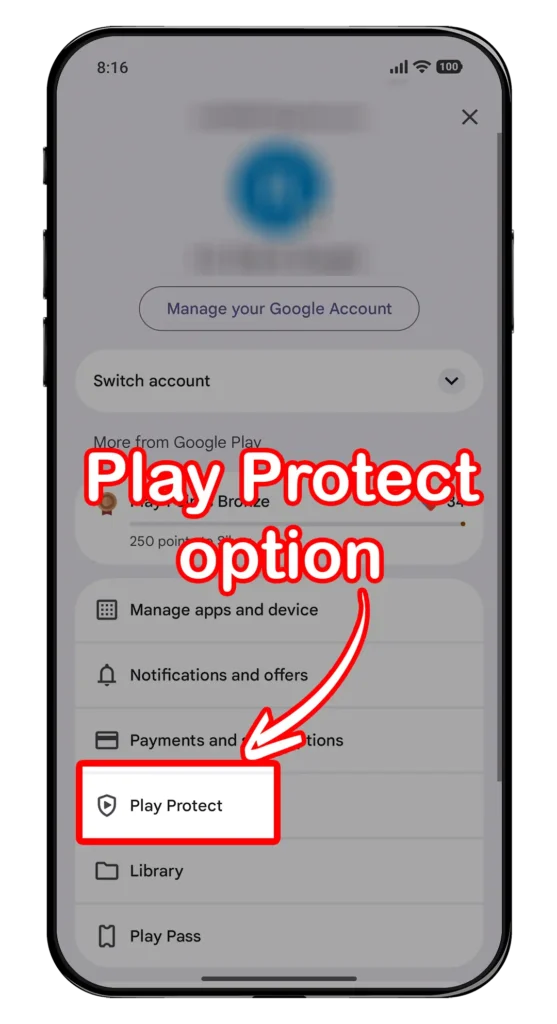
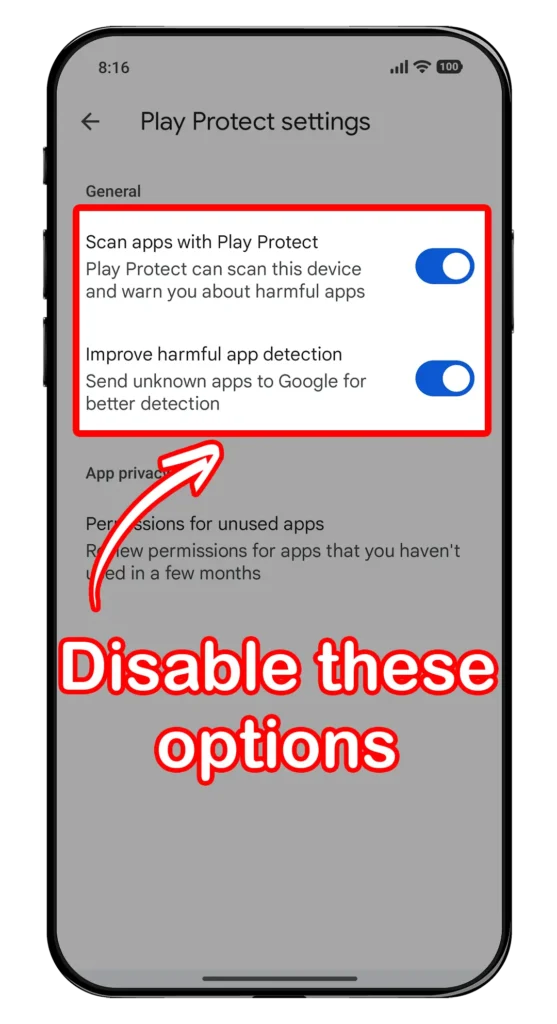
- Tap on Play Protect option
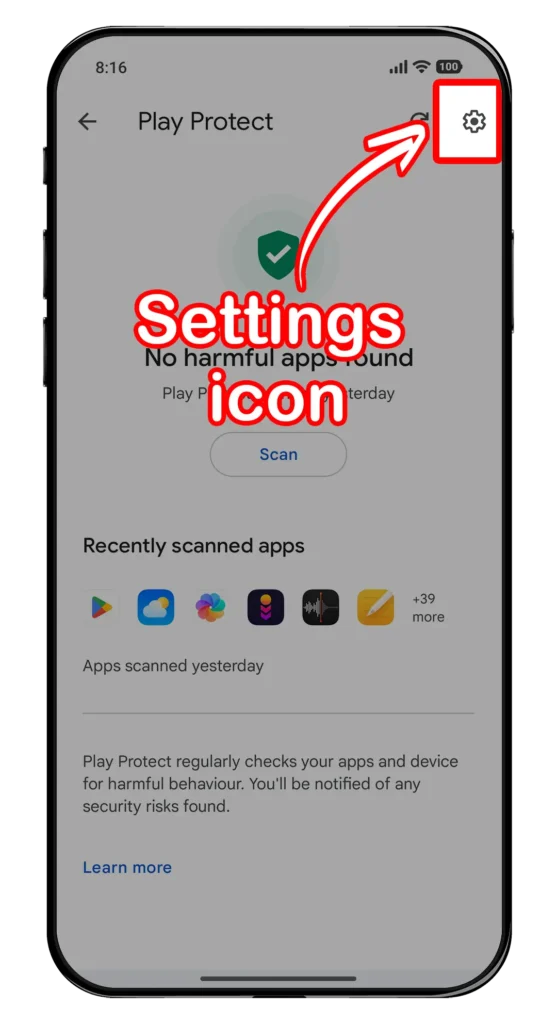
- Tap on Settings icon (top-right gear icon)
- And disable Scan apps with Play Protect and Improve harmful app detection options
Step 2: Installing the MTZ Installer Pro app
Simply download the MTZ Installer Pro apk now and install it.
Step 3: Setting App Permissions
This app requires several permissions in order to work. Let’s set them up –
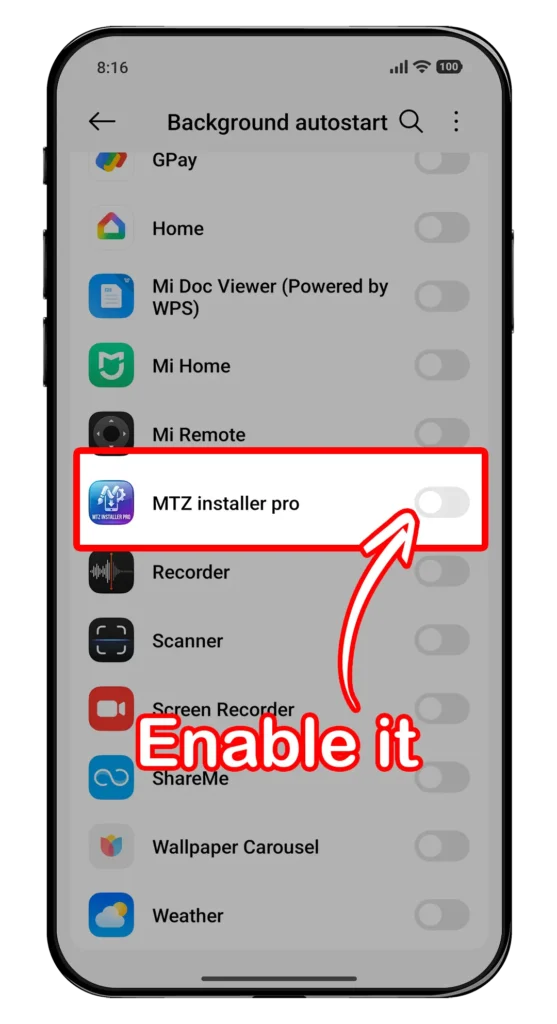
Background autostart Permission –
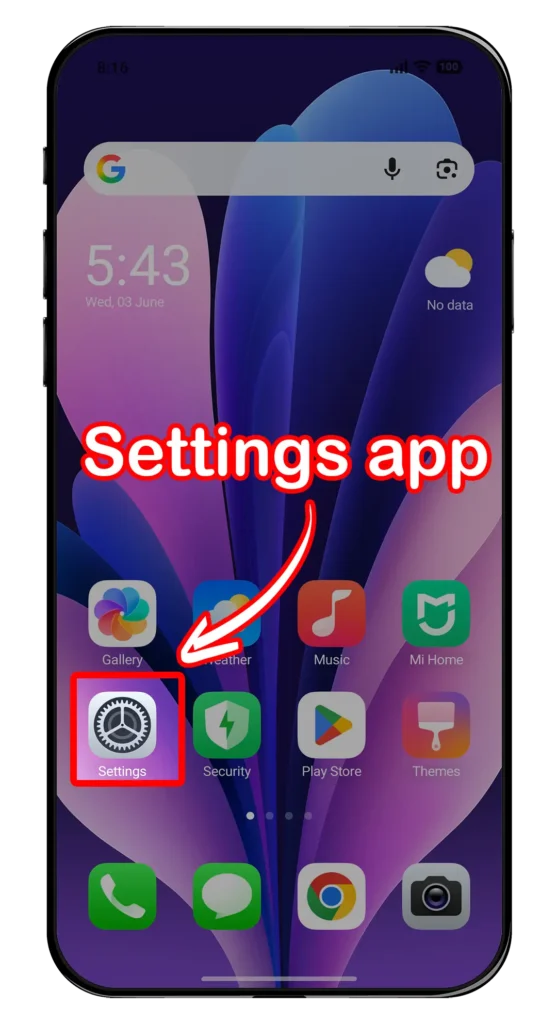
- Open Settings app
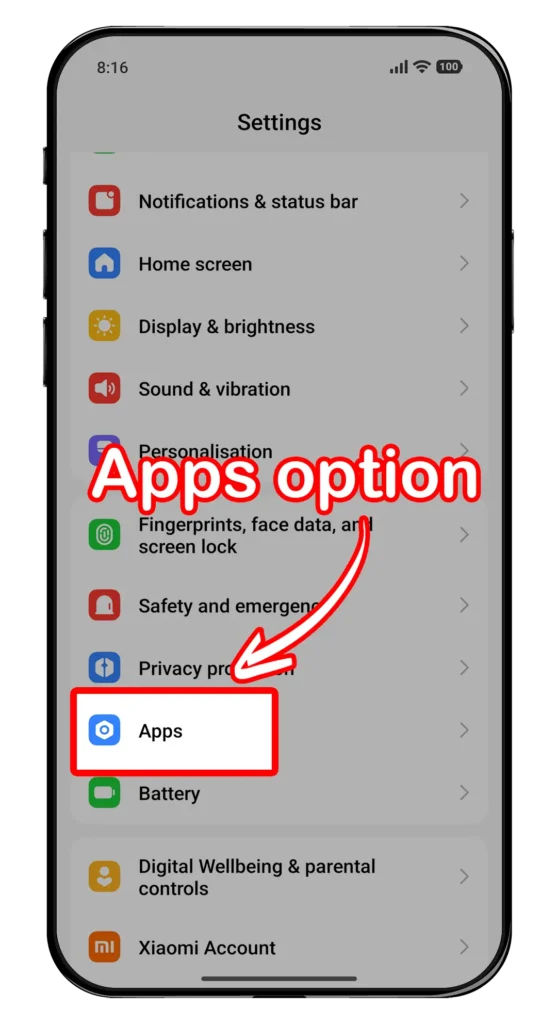
- Go to Apps
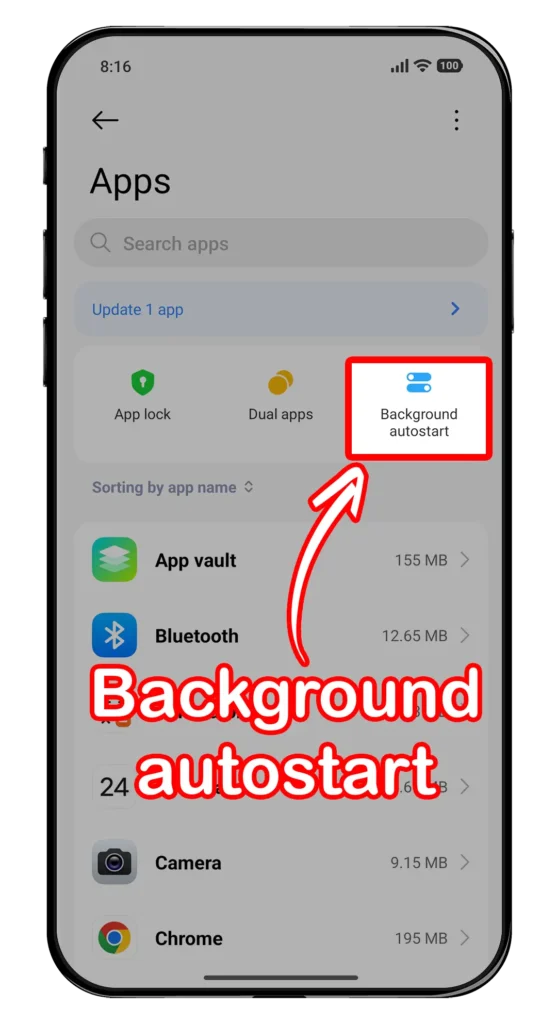
- Tap on Background autostart option
- Find the MTZ Installer Pro app and enable it
Battery Usage Permission –
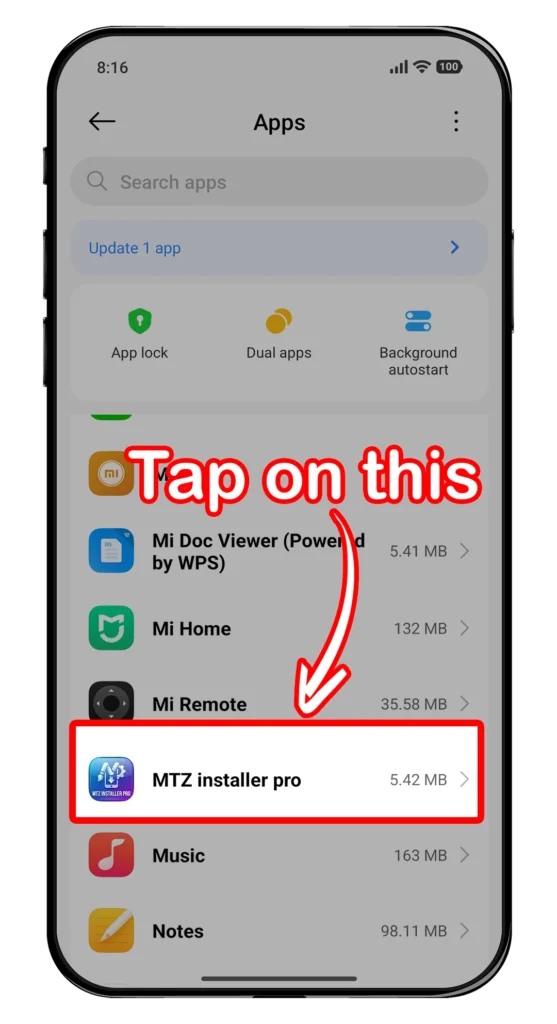
- Open Settings app
- Go to Apps
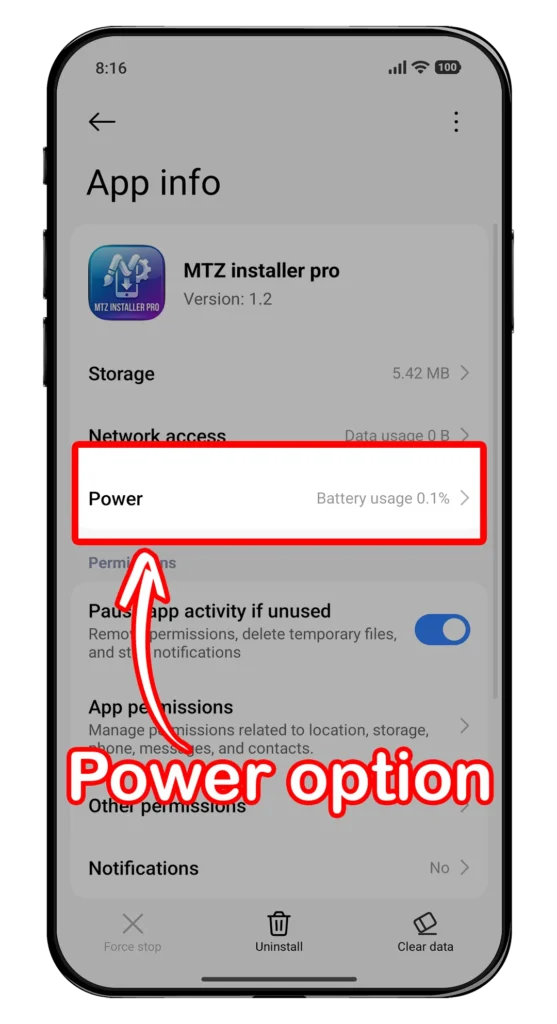
- Find the MTZ Installer Pro app and tap on it
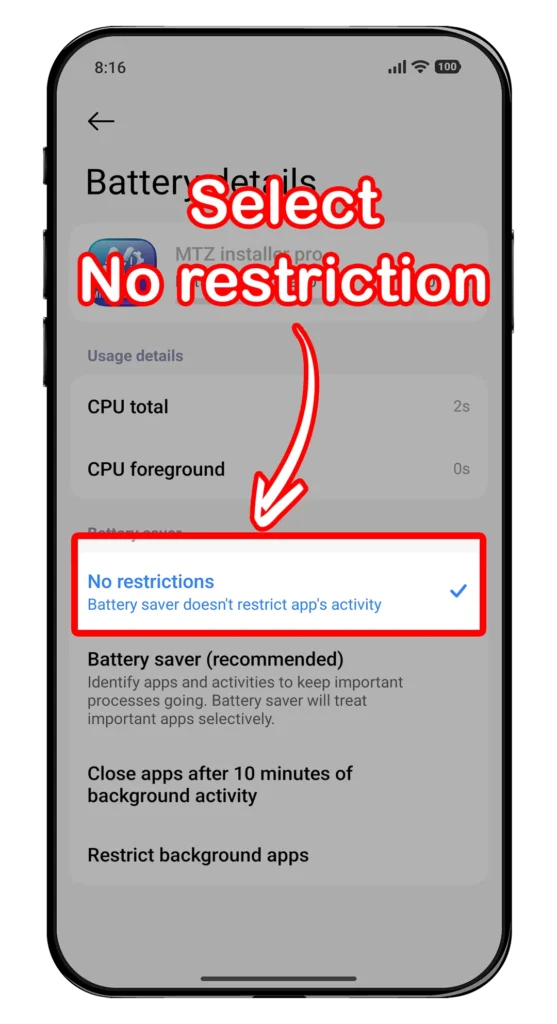
- Tap on Power option
- Select No restriction option
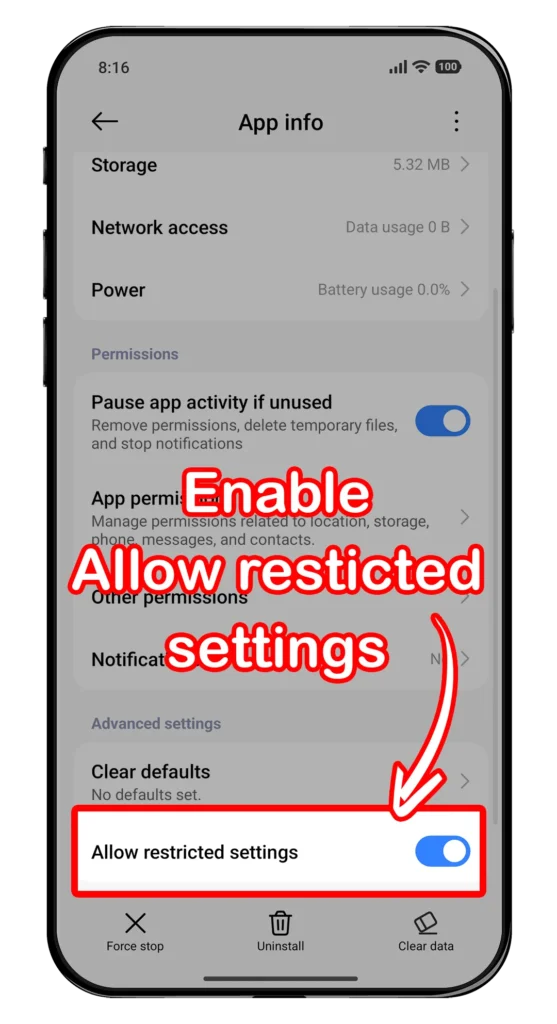
Allow restricted settings –
- Open Settings app
- Go to Apps
- Find the MTZ Installer Pro app and tap on it
- Scroll down and enable this option – Allow restricted settings
Enabling Hyper Theme Service –
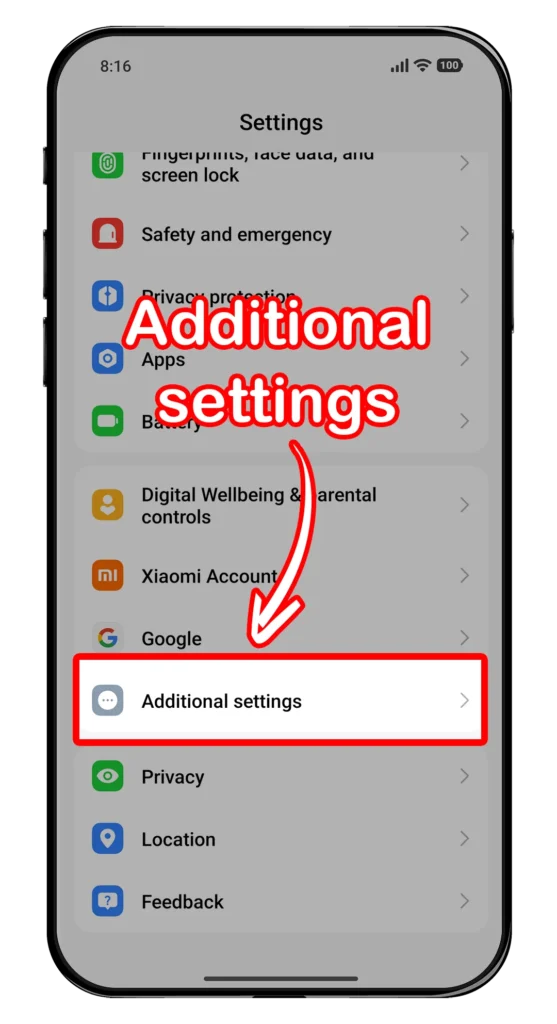
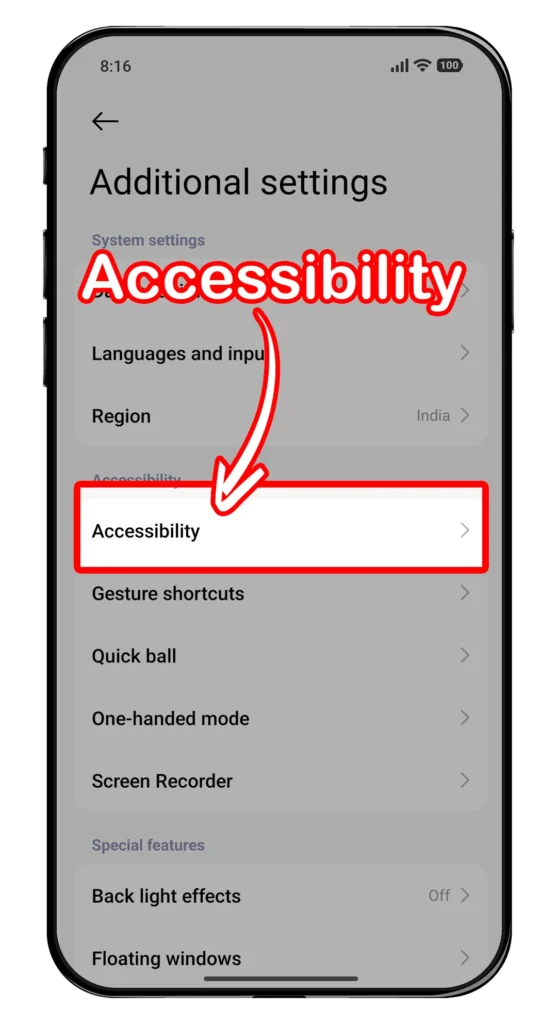
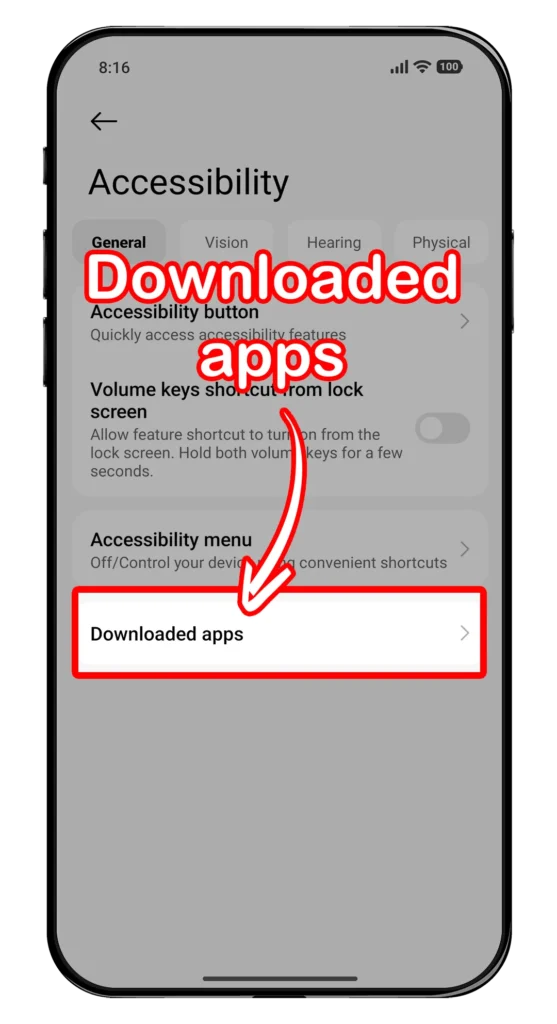
- Open Settings app
- Go to Additional settings
- Go to Accessibility
- Go to Downloaded apps
- Tap on Hyper Theme Service
- Enable use Hyper Theme Service
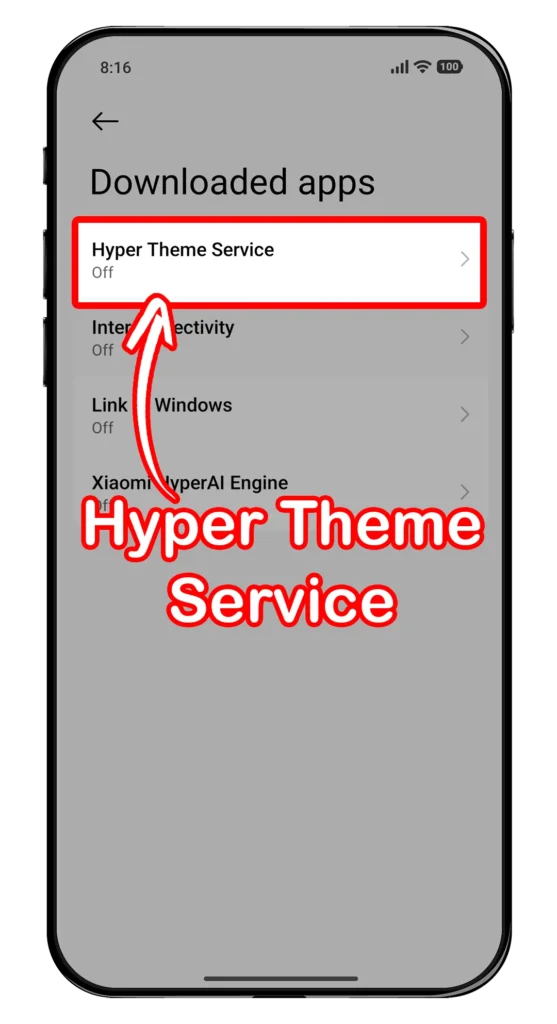
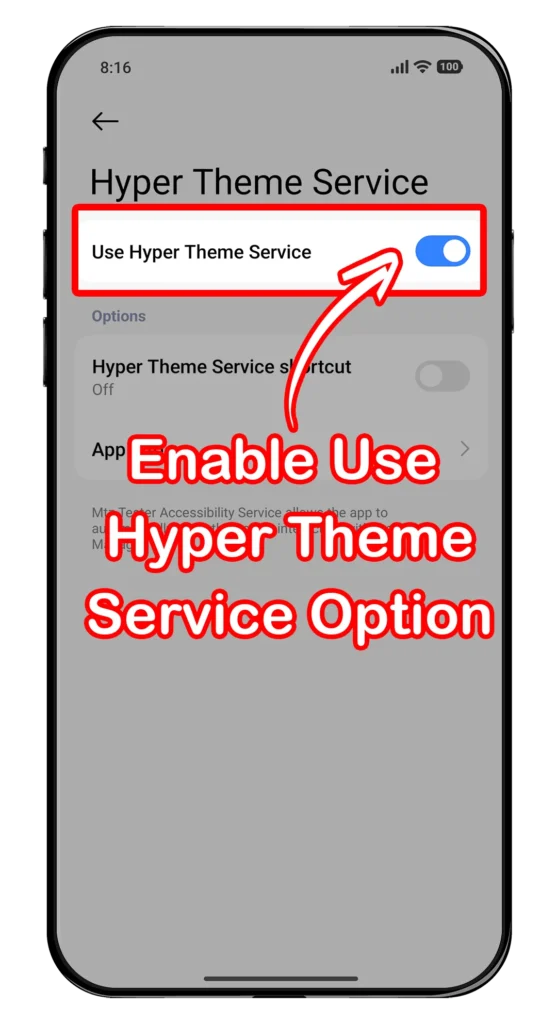
Pin the App –
- Open Recent menu
- Long press this app and tap on the Lock icon
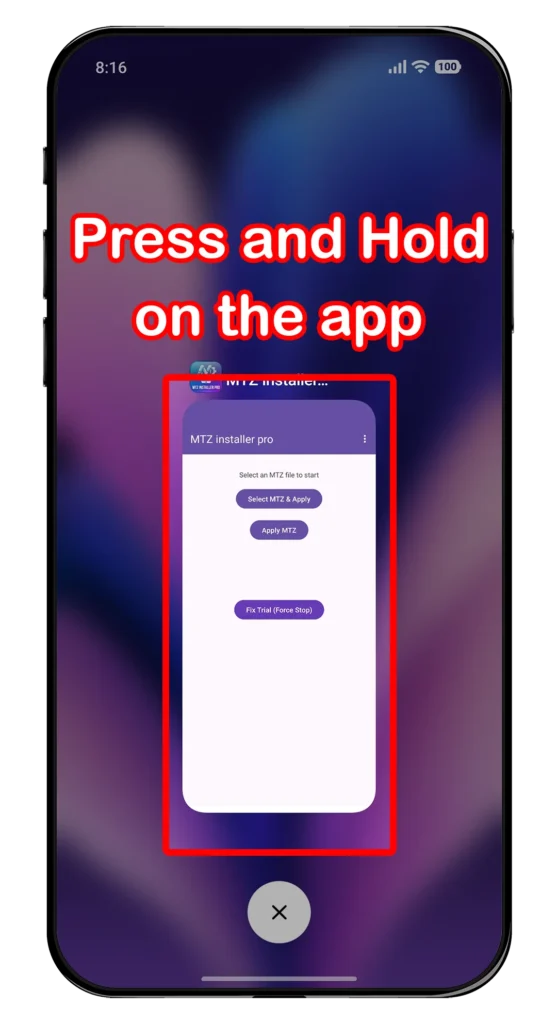
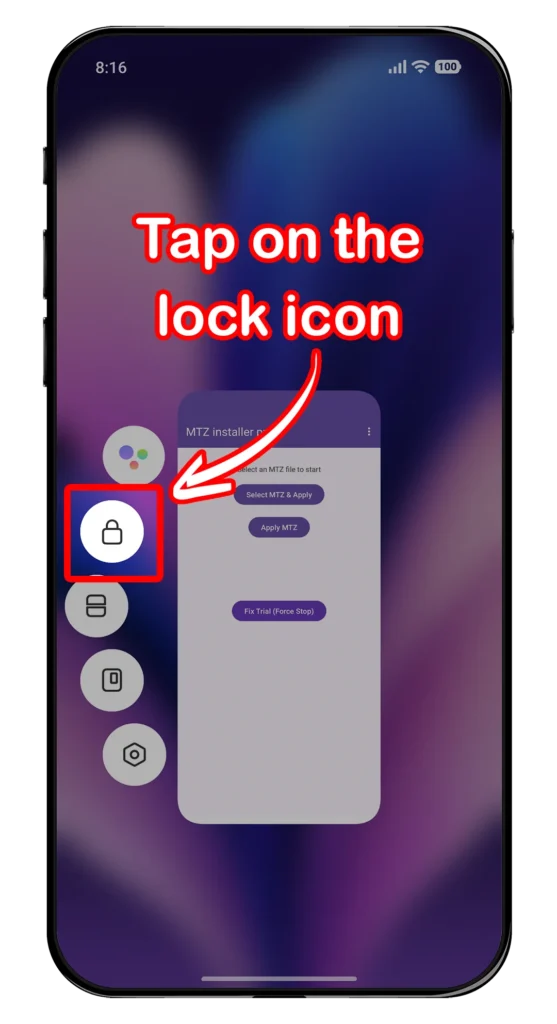
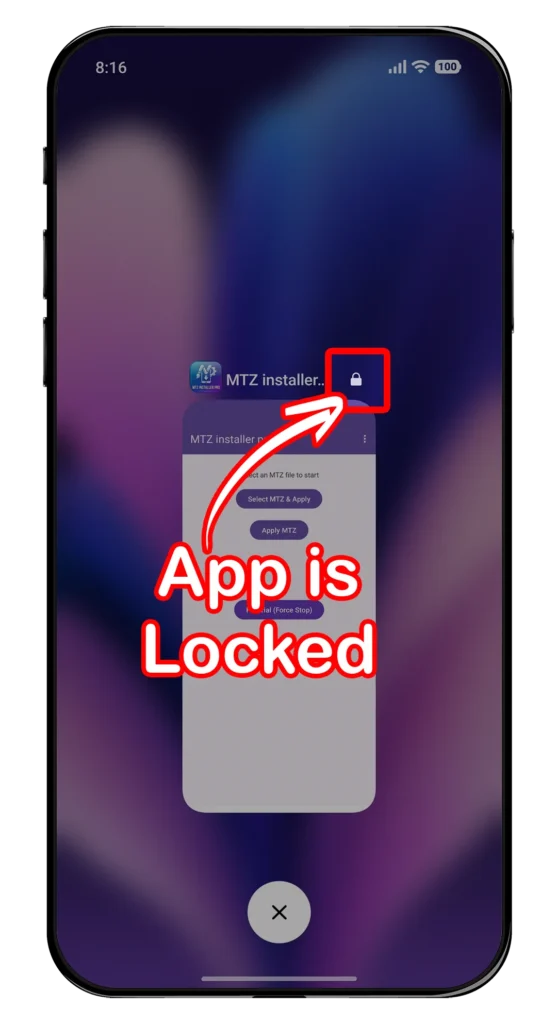
All the permission has been set for this app to work. You can check the status of these permissions in your app. Open MTZ installer pro app -> Tap on Three dots (Top-Right corner) -> Settings. If it shows that the status is enabled, that means the app is ready to be used.
Step 4: Applying the MTZ Theme
- Open the MTZ installer pro app
- Tap on Apply MTZ option
- Now select your MTZ theme file
- The theme will be applied now
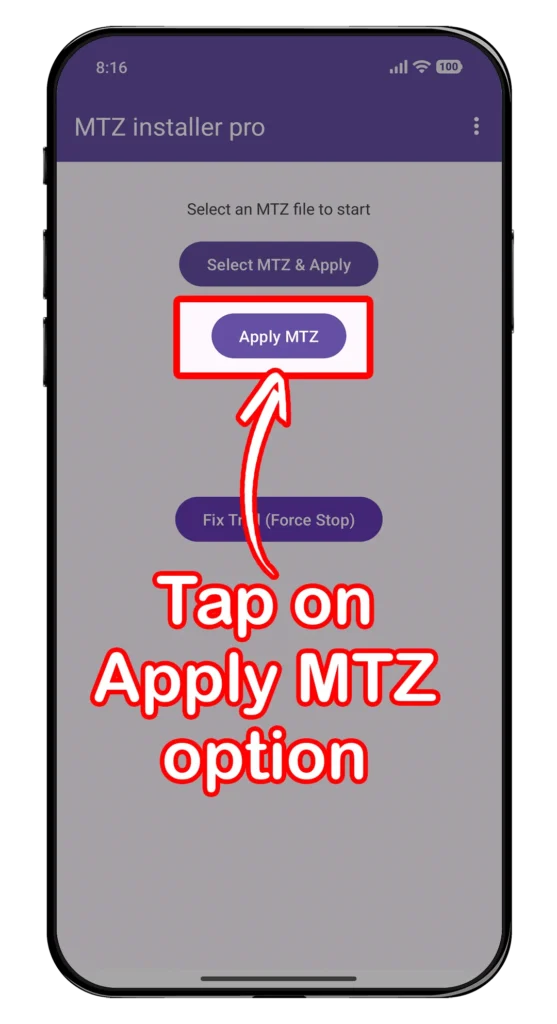
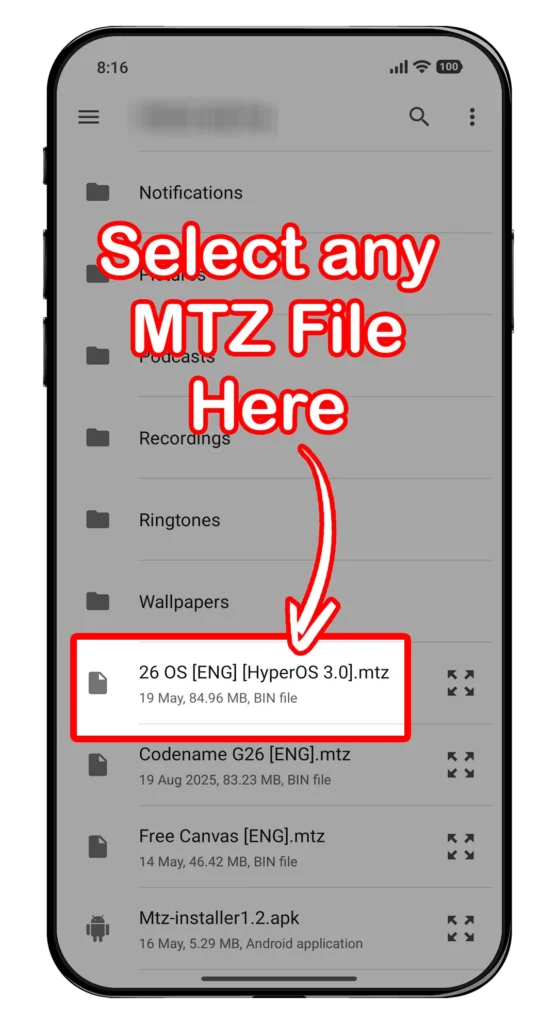
Looking for high-quality themes? Browse our latest MTZ themes collections below:
FAQs
1. Why does my theme revert back to the default theme?
In most cases, this happens when one or more required permissions are missing. Double-check the Background autostart, Battery usage, Restricted settings, and Hyper Theme Service permissions.
2. Can I install MTZ themes without root access?
Yes, you can apply MTZ themes without root with this method.
3. Will future HyperOS updates break this method?
We cannot guarantee how long this method will continue to work. Future OS updates or Themes app updates may introduce changes that prevent it from functioning as expected.
4. Does this method work on HyperOS?
We tested this method on a HyperOS device running the Global ROM. It should also work on most Xiaomi, Redmi, and Poco devices.
5. Can I remove the installed theme later?
Just apply the Classic theme form the Themes app and you will back to default theme again.
6. Is MTZ Installer Pro safe to use?
MTZ Installer Pro is a third-party application. Since it is not available on the Google Play Store, users should review the warning above and proceed only if they trust the source of the APK.
If you face any issues while following this method, feel free to contact us for assistance or just drop a comment.
Happy
iOS
My theme is not apply is says some kind of error
You might have updated your device recently as Xiaomi is updating its core Theme manager architecture to avoid apps that bypass theme restrictions. Hence, if you update your device or Themes app, this method might not work.